
Page
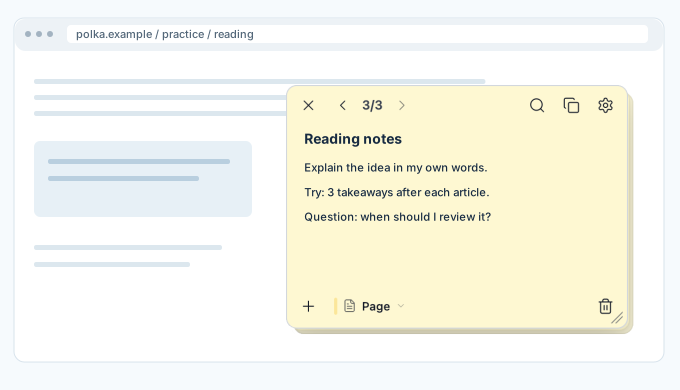
The note stays on the current page only.
One page, a whole site, every site, a floating window, or your own address rule. Choose where your note belongs.
For desktop Chrome on Mac or Windows. Internal browser pages and the Chrome Web Store restrict extensions.
The note stays on the current page only.
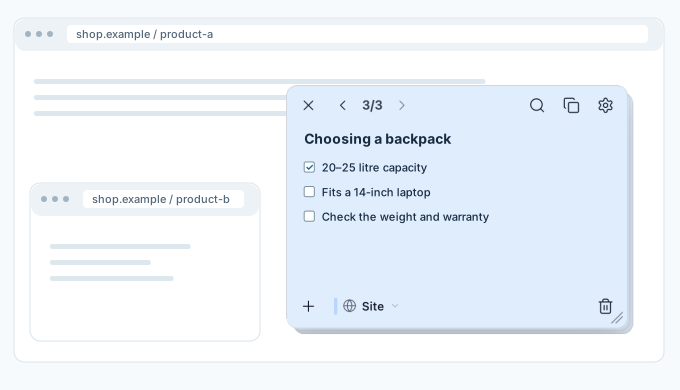
The same note stays across tabs and windows of one site.
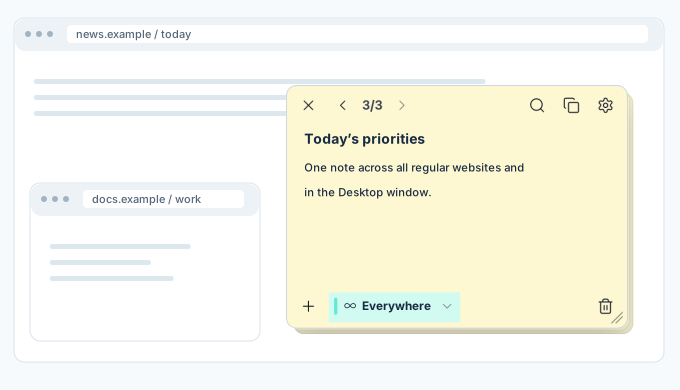
One note across all regular websites and in the Desktop window.
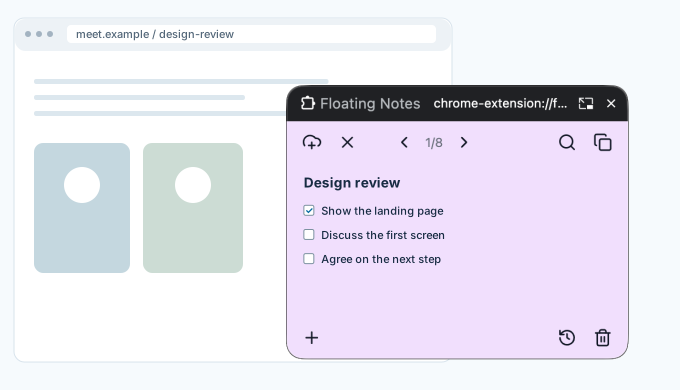
The note opens as a floating window above apps.
Show a note only at addresses that match your rule, such as GitHub issue pages.
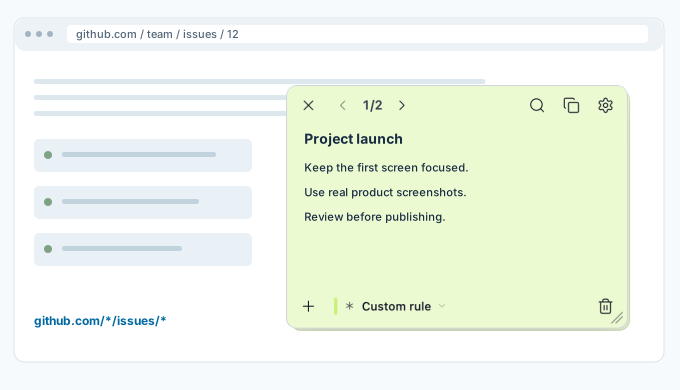
These illustrations explain the Chrome extension. The working editor below is a separate local stack; it does not switch between these five modes.
Open the mode control at the bottom of the note and choose where this note should appear.
Open the mode control at the bottom of a note. Page, Site and Desktop are free; Everywhere and Custom rule are Pro.
Only this page
All tabs on this site
One note across all regular websites and in the Desktop window.
Floating window above apps
Show a note only at addresses that match your rule, such as GitHub issue pages.
The purple stack is a working widget. Write, edit and switch notes right here. To float it above other tabs, click 🖥 at the top left of the note.
Add the extension for notes on any page or site, quick shortcuts and search.
Drafts stay in this browser on this site. They are separate from extension notes. Save a copy before clearing site data.
A floating window needs a supported desktop browser. You can keep writing here.
Loading your notes…
The editor could not load. Reload this page or add the Chrome extension.
Add to Chrome ↗Your stack is open in the floating window.
Keep this tab open while using the floating window. Add the Chrome extension to use floating notes without keeping this website open.
For desktop Chrome on Mac or Windows. Internal browser pages and the Chrome Web Store restrict extensions.